Ouch Now
1
All your plans in one list
Your reminders sit right next to meetings from Google, Outlook and Apple Calendar. One list in your menu bar, for the whole day.
A reminder app for the Mac. When something is due, a cat peeks up and bites your screen. It gets a little stronger until you act, and you can keep typing the whole time.
Coming soon for macOS 14 and later. No account needed.
When something is due, your character shows up right on your screen and grows a little each minute. Pick a cat, a desk clock, the moon or a glow.
Your reminders sit right next to meetings from Google, Outlook and Apple Calendar. One list in your menu bar, for the whole day.
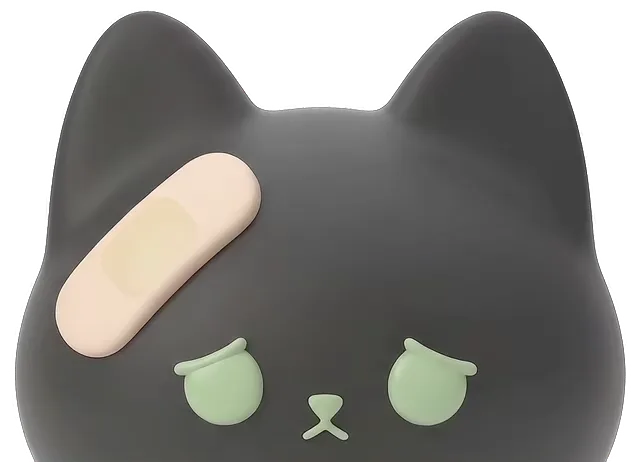
When it's due, Soba-kun peeks up and bites your screen. Leave it, and the cracks pile up and the sound comes more often, until you act.
One click: Done and it's gone, or Snooze for a bit. Each snooze is shorter than the last, so it can't wait forever.
The alert sits on top of your work, but your keyboard keeps working. Finish your sentence, then press Done or snooze.
Connect Google Calendar, Outlook.com, Apple Calendar or a calendar link. Meetings show in your list with your reminders, and Join opens the call.
Sort reminders into types like Work, Health or Home, each with its own effect, sound and icon. Repeating reminders keep their clock time when you travel.
When you snooze, a small timer shows how long is left. Drag it anywhere, pick Small, Medium or Large, or click it to peek at the reminder.
The alert doesn't take over your keyboard or block your clicks. Characters fade where your pointer is, so whatever is behind them still works.
Remote workers, busy calendars, anyone who looks up and it's suddenly 4 PM. Great if time slips away from you.
No account needed, no tracking, and no analytics, in the app or on this website.

Pay once. No subscription.
Paddle, our reseller, handles the checkout. Taxes may be added depending on where you live. Refunds within 14 days, see the Refund Policy. By buying you agree to the Terms.
Download the app and use everything for 14 days. No account and no card. On day 12 the app tells you the trial is ending. After it ends, your reminders are kept, but alerts and calendar sync pause until you enter a license key.
No. You pay US$19 once and keep the app, with all version 1 updates. A future version 2 may be a paid upgrade.
A license works on one Mac at a time. To move it, enter your key on the new Mac. Within about a day the old Mac stops using it, and shows a button to move it back.
In the app, use Settings → General → Your data → Export…, then Import… on the new Mac. Your reminders, types, settings and added sounds move over. Enter your license key there too (the old Mac stops using it within about a day), and sign in to your calendars again.
Use Settings → License → Restore in the app, or the restore form, with your email and the Transaction ID from your Paddle receipt.
Yes, you can ask within 14 days of buying, through the link in your Paddle receipt or at paddle.net. Details are in the Refund Policy.
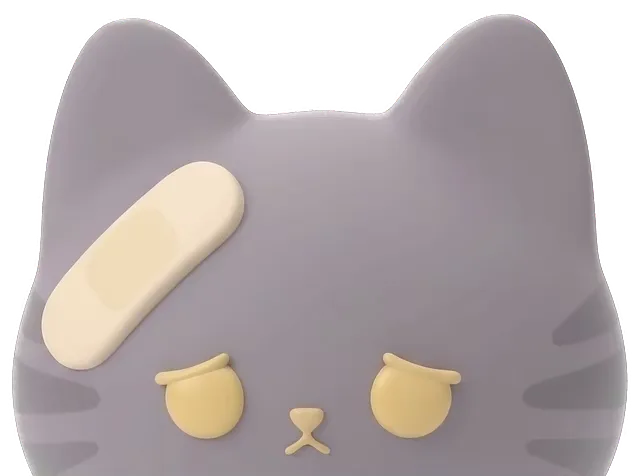
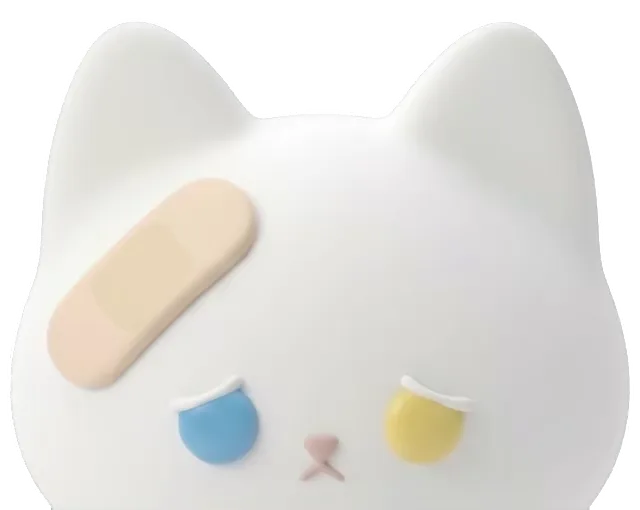
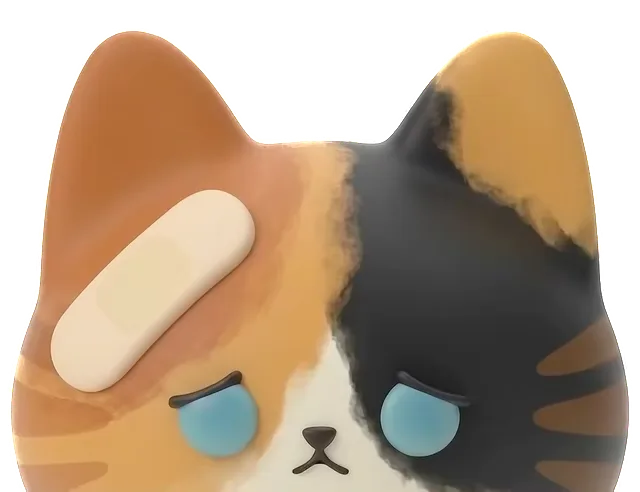
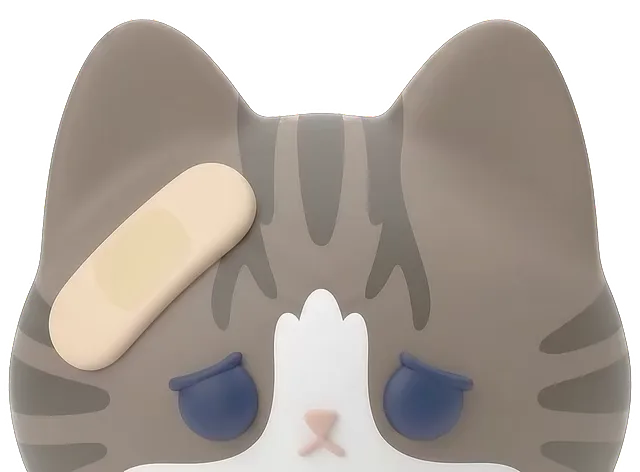
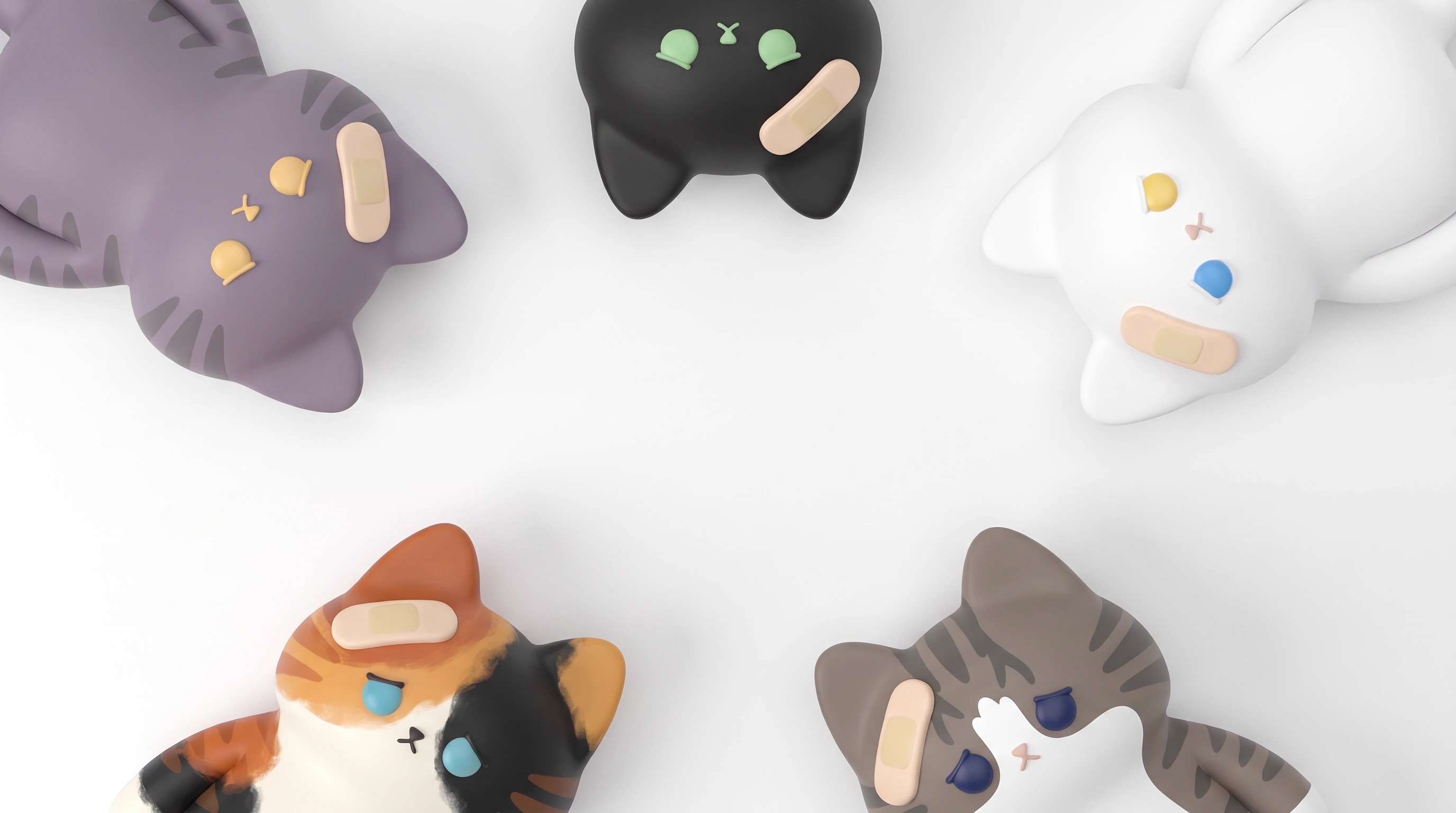
Soba-kun, Mike-chan, Goma-kun, Sumi-kun and Siro-chan: five little troublemakers with band-aids, each with its own bite and meow. Soba-kun is the snack boss and the first one you meet. Meet the cast.
No. It doesn't take over your keyboard or block your clicks, so you can keep typing and clicking. It builds up slowly over about four minutes, and it's calmer when the Mac's Reduce motion setting is on.
A Mac with macOS 14 Sonoma or later, with an Apple chip or Intel. Calendars are optional: Google Calendar, Outlook.com (personal accounts), Apple Calendar, or a calendar link or file (.ics, the "subscribe" link most calendars offer), which also works for most work calendars.
Ouch Now comes from an independent developer and hasn't gone through Apple's app check (notarization) yet, so macOS asks you to confirm once. The steps are below, under Download.
Nothing about your reminders or calendars. The app talks to our server only for two things: the license (once when the trial starts, with a scrambled code that stands for your Mac, not your name, and once a day after you've bought it) and updates (about once a day, with no ID; you can turn this off). See the Privacy Policy.
Ouch Now isn't available to download yet. The 14-day free trial starts when it is.
We'll email you when Ouch Now is out, and now and then with news about it. We don't track opens or clicks, and you can unsubscribe at any time. See the Privacy Policy.
macOS 14 or later · Apple chip or Intel
macOS shows a warning the first time. This is expected.
No Open Anyway button? It shows for about an hour after step 1; opening Ouch Now again brings it back. Details in Apple's guide.